Introduction to Operating Systems
An operating system (OS) is the software layer that connects the computer hardware to users and applications (and AI agents now). Instead of writing instructions that directly manipulate processors, memory chips, or disk drives, we interact with the OS, which manages these resources for us.
The Structure of an Operating System
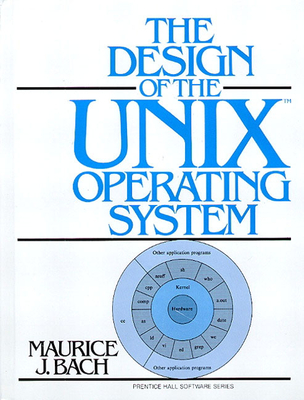
An OS typically consists of three main parts:
Kernel: the core component. It directly manages hardware (CPU, memory, devices) and enforces rules for resource sharing.
System Programs and Applications: provide services built on top of the kernel, such as file utilities, compilers, or networking tools.
Shell and User Interface: the layer through which users interact with the OS. This can be:
Command-line shells (e.g.,
bash,zsh), where users type commands, orGraphical interfaces (e.g., desktops, windows, icons).
In this lab, we will focus on the shell, because computational astrophysicists often work on large remote systems (HPC clusters and Cloud) where the command line is the most efficient and sometimes the only available interface.
Common Features of Operating Systems
Despite differences, most operating systems share these responsibilities:
Process Management: starting, stopping, and scheduling programs.
Memory Management: allocating, tracking, and protecting system memory.
File Systems: organizing data into files and directories.
Device Management: controlling access to hardware like disks and network cards.
Security and Access Control: permissions, authentication, and isolation.
User Interfaces: shells or graphical environments for interaction.
Unix
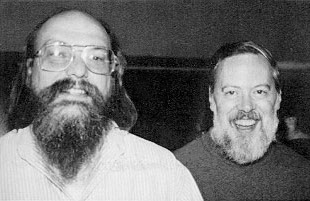
Unix, developed at Bell Labs in the 1960s-70s by Ken Thompson and Dennis Ritchie, set the standard for many OS design principles:
A multi-user, multi-tasking architecture.
A hierarchical file system.
“Everything is a file” (even devices).
Small, composable programs connected via pipes.
Linux

Linux is a Unix-like operating system (technically only the kernel) created by Linus Torvalds in 1991. Unlike traditional Unix systems, it was built independently. Its open-source license (GPLv2) lets anyone to study, modify, and redistribute the code.
Here is the original humble email that changed the world:
Hello everybody out there using minix -

I'm doing a (free) operating system (just a hobby, won't be big and
professional like gnu) for 386(486) AT clones.  This has been brewing
since april, and is starting to get ready.  I'd like any feedback on
things people like/dislike in minix, as my OS resembles it somewhat
(same physical layout of the file-system (due to practical reasons)
among other things).

I've currently ported bash(1.08) and gcc(1.40), and things seem to work.
This implies that I'll get something practical within a few months, and
I'd like to know what features most people would want.  Any suggestions
are welcome, but I won't promise I'll implement them :-)

              Linus (torvalds@kruuna.helsinki.fi)

PS.  Yes - it's free of any minix code, and it has a multi-threaded fs.
It is NOT protable (uses 386 task switching etc), and it probably never
will support anything other than AT-harddisks, as that's all I have :-(.
Unix Philosophy
The power of Unix and Linux comes not just from its technical features, but from a design philosophy. Some of the guiding principles are:
Do one thing well. Each program should have a single, focused purpose. To solve a new problem, build a new tool rather than overcomplicating an old one.
Build programs to work together. The output of one program should serve as the input to another. This encourages simple text-based interfaces and avoids unnecessary formatting.
Prototype early and refine. Software should be tested quickly, with the freedom to discard clumsy parts and rebuild better versions.
Rely on tools, not manual effort. Create reusable tools to simplify tasks, even if they are only needed temporarily.
Another core idea is that “everything is a file”. As a result, devices, processes, and data can all be accessed through a unified file interface.
Because of these simple yet powerful design choices, Unix and Linux are extremely flexible and extensible.
Unix evolved into a broad family of operating systems, including the BSDs (FreeBSD, OpenBSD, NetBSD), Solaris, and eventually NeXTSTEP, which became macOS (Mac OS X). Linux, meanwhile, has grown into an ecosystem with countless distributions.
Today, Linux has surpassed both traditional Unix and Windows in many domains and become the #1 OS for the internet and scientific computing:
Runs directly on bare-metal servers in data centers and on virtual machines in the cloud.
Powers the fastest supercomputers in the world.
Serves as the backbone of scientific computing, HPC, machine learning, and AI.
Provides the kernel for Android smartphones, used by billions of people worldwide.

Shells
The terms “shell” and “terminal” are often used interchangeably today, but they actually refer to different parts of the system:
Terminal (or terminal emulator): A text-based interface that lets you interact with the operating system. On modern computers this is usually a software application (e.g., Terminal on macOS, GNOME Terminal on Linux).
Shell: A program that runs inside the terminal. It interprets the commands you type, sends them to the operating system, and prints the results back. Examples include
sh,bash, andzsh.
# HANDSON: find out what OS you are running.
#
# Method 1: on Mac or Linux, open a terminal, type `uname -a`.
#
# Method 2: on Windows, make sure that Windows Subsystem for Linux
#           (WSL) is enabled, run the "Linux GUI apps", then type
#           `uname -a`.
#
# Method 3: "shell out" a single line in Jupyter notebook by adding a
#           "!" before your command in a Jupyter cell, i.e.,

! uname -a
Darwin puali.local 24.6.0 Darwin Kernel Version 24.6.0: Mon Jul 14 11:28:17 PDT 2025; root:xnu-11417.140.69~1/RELEASE_X86_64 x86_64
# Method 4: "shell out" a whole cell in Jupyter notebook by adding
#           `%%bash` at the beginning of a Jupyter cell, i.e.,
%%bash
uname -aDarwin puali.local 24.6.0 Darwin Kernel Version 24.6.0: Mon Jul 14 11:28:17 PDT 2025; root:xnu-11417.140.69~1/RELEASE_X86_64 x86_64
Basic Unix/Linux Commands
Here are some commands every Unix/Linux user should know.
Navigation
| Command | Usage | Example |
|---|---|---|
whoami/id | print effective userid (and group IDs) | id USER print information for each specified USER |
pwd | print name of current/working directory | |
hostname | show or set the system’s host name | |
ls | list directory contents | ls -l long format; ls -a show hidden files |
cd | change the working directory | cd to home; cd /usr/bin to /usr/bin |
Basic File Management
| Command | Usage | Example |
|---|---|---|
touch | (create an empty file and) change file timestamps | touch FILE |
mkdir | make directories | mkdir DIR |
mv | move (rename) files | mv FILE FILE1; mv DIR DIR1 |
cp | copy files and directories | cp FILE1 FILE2; cp -r DIR1 DIR2 |
rm | remove files or directories | rm FILE1 FILE2; rm -r DIR1 DIR2 |
Viewing Files
| Command | Usage | Example |
|---|---|---|
cat | concatenate files and print on the standard output | cat FILE |
head/tail | output the first/last part of files | head FILE; tail FILE |
more/less | display the contents of a file in a terminal | more FILE; less FILE |
Wildcards, Globbing, and Brace Expansion
The shell can automatically expand patterns into lists of files or strings, saving you from typing them out manually.
| Command | Usage | Example |
|---|---|---|
* | pattern matching zero or more characters in filenames | FILE.* -> FILE.txt FILE.out FILE.err |
? | pattern matching exactly one character in filenames | FILE.??t -> FILE.txt FILE.out |
[ ] | matches any single character within the set or range | FILE.[oe]* -> FILE.out FILE.err |
{ } | expand a sequence or set of strings | OUT{0..9}.txt -> OUT0.txt OUT1.txt ... OUT9.txt |
Many of these commands deal with the file system, which makes the point that in Unix/Linux, “everything is a file”. Hence, regular files, directories, devices, and even some processes are all accessed using the same interface.
%%bash

# HANDSON: try out some of the above commands
#
# Specifically, try out both `touch` and `ls -l` to verify that
# `touch` does update timestamp of a file.
%%bash

# HANDSON: on Linux, what "files" are available inside `/proc`?
# What do you get if you `cat` these files?
%%bash

# HANDSON: on Linux, what "files" are available inside `/dev`?
# What are these files used for?
#
# E.g., try `ls > /dev/null`
Combining Programs
Unix programs are designed to work together. The shell provides simple mechanisms to connect these small tools into powerful workflows.
Redirection and Piping Operators
| Command | Usage | Example |
|---|---|---|
| or |& | pipeline: standing stdout of a command to the stdin of another command | ls | sort -r |
> or >> | redirecting output to file; > overwrites the file, >> append | ls > LIST; ls >> LIST |
< | redirecting input | cat < file; more useful when combined with loops, etc |
`cmd` or $(cmd) | command substitution | ls -l $(cat LIST | sort | uniq | head) |
Filters
Some of the most useful programs to use with pipe are “filters”.
They take input from stdin, transform them according to some rules,
and then output the results to stdout.
Here are some filters that I use frequently.
| Command | Usage | Example |
|---|---|---|
grep | print lines matching a pattern | grep 'PATTERN' FILE |
sed | stream editor for filtering and transforming text | sed 's/OLD/NEW/g' FILE |
awk | pattern scanning and processing language | awk '{print $1}' FILE |
sort | sort lines of text files | |
uniq | report or omit repeated lines |
%%bash

# HANDSON: try out at least the following
#
# touch FILE{1..10}.{dat,txt} # create empty files
# ls *.txt                    # List all files ending in .txt
# ls FILE?.dat                # Matches FILE1.dat, FILE2.dat ... but not FILE10.dat
# ls FILE[1-3].txt            # Matches FILE1.txt, FILE2.txt, FILE3.txt
%%bash

# HANDSON: try out at least the following
#
# ls / > ~/list
# cat ~/list
# rm  ~/list
#
# cat /proc/cpuinfo | grep ^processor
#
# echo "Today is $(date)"
Shell Scripting
Shells allow you to automate repetitive tasks by writing scripts. A shell script is simply a text file containing a series of commands. Here is an example of a simple Bash script:
#!/bin/bash
echo "Hello, World!"
To run the script, save it to a file (e.g., hello.sh), make it
executable (chmod a+x hello.sh), and then execute it (./hello.sh).
For almost all Unix/Linux systems, bash are installed by default,
and sh is just a symbolic link to bash.
On Mac, because of license comptability, the default shell is zsh;
and sh is a minimal “POSIX-compliant command interpreter”.
Variables and String Manipulation
| Command | Usage | Example |
|---|---|---|
X=... | assigning variables | NAME="Alice"; echo $NAME |
X=$(...) | command substitution inside variables | DATE=$(date); echo "Today is $DATE" |
$HOME, $PATH, etc | environment variables: special variables used by the system and programs | echo $HOME $PATH |
% and %% | shortest and longest suffix removal | FILE=astr501.txt; echo ${FILE%.txt} # prints astr501 (remove suffix) |
# and ## | shortest and longest prefix removal | FILE=astr501.txt; echo ${FILE#astr} # prints 501.txt (remove prefix) |
Control structures
The shell is not only an interface for running commands, but also a scripting language. The most common control structures are for conditions and loops.
| Command | Usage | Example |
|---|---|---|
if ...; then ...; elif ...; then ...; else ...; fi | conditional statement | x=15; if [ $x -lt 10 ]; then echo "x is less than 10"; else echo "x is 10 or more"; fi |
for ...; do ..; done | for loop | for i in {1..5}; do echo "Run $i"; done |
%%bash

# HANDSON: Using the commands we just learn, do the following:
#
# 1. Create files 1.txt, 2.txt, ..., 100.txt.
#
# 2. Rename them to 001.txt, 002.txt, ..., 100.txt.
#    Hint: `printf '%03d' 1` uses C format string to print "001"
#
# 3. Rename them to SIM001.txt, SIM002.txt, ..., SIM100.txt.
%%bash

# HANDS-ON: Compare Files in Two Directories with a Shell Script
#
# Let's write a shell script that compares the contents of two
# directories.
# Start simple, then improve your script step by step.
#
# Step 1: compare file names only
#   * Ignore file contents and subdirectories.
#   * Use `ls DIR1/` and `ls DIR2/` to get the list of files.
#   * Output a list of files that exist only in one directory
#     but not the other.
#
# Step 2: compare file contents
#   * Improve your script so that files with the same name are
#     considered different if their contents differ.
#   Hint: the commands `md5sum` (Linux) or `md5` (macOS) can generate
#     checksums to compare file contents.
#
# Step 3: include subdirectories
#   * Extend your script to work on the entire directory tree, not
#     just the top level.
#   Hint: the `find` command can list files recursively.
Shortcuts for Interactive Terminal
Here are some tips and tricks to enhance your terminal usage:
Use
Tabfor auto-completion of commands and filenames.Use
Ctrl+Rto search through your command history.Use
Ctrl+Cto cancel the current command.Use
Ctrl+Lto clear the terminal screen.Use
!!to repeat the last command.Use
!<command>to repeat the last occurrence of a specific command. Example:!lsrepeats the last ls command.
File Permissions and Ownership
Managing file permissions and ownership is crucial for system security and proper access control on Unix/Linux. Here are some commands related to file permissions and ownership:
| Command | Usage | Example |
|---|---|---|
chmod | Change file permissions | chmod 755 FILE sets the file permissions to read, write, and execute for the owner, and read and execute for others; chmod u+X,go= FILE flags the file for executable for the user (owner) but disable everything else for group and other. See man chmod for options. |
chown | Change file ownership | chown USER:GROUP FILE changes the owner and group of the file. |
%%bash

# HANDSON: use `ls -l` to check permissions for some files on your
# computer; modify the permission and find out what would happen.
# Try out different syntax for modifying the permissions.
Viewing Running Processes
You can view and manage running processes using the following commands:
| Command | Usage | Example |
|---|---|---|
ps | report a snapshot of the current processes | ps aux shows detailed information about all running processes |
top | display Linux processes |
Getting Help in Bash
When working in the shell, you often want to learn more about a command or explore advanced features. Common ways to get help include:
| Command | Usage | Example |
|---|---|---|
man | an interface to the on-line reference manuals | man ls |
CMD --help or CMD -h | built-in help messages | tar -h |
Further resources:
%%bash

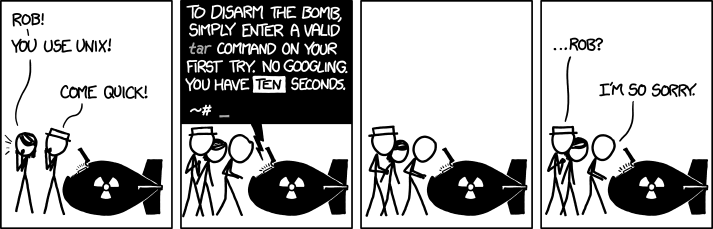
# HANDSON: back to the first xkcd comic... so what is `tar` and what
# is a valid tar command?
Text Editors
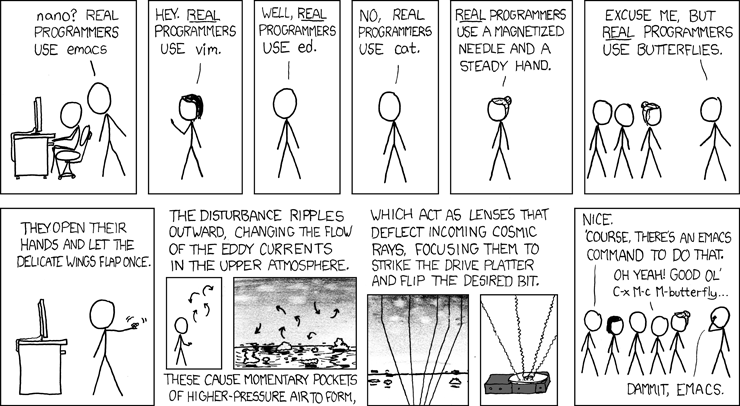
To work effectively on Unix/Linux systems, you need a text editor to
create and modify files such as code, configuration files, or
scripts within a terminal.
Three most common editors you will encounter are nano, vim, and
emacs.
nano: Simple and Beginner-FriendlyCommand:
nano FILEEasy to learn: commands are listed at the bottom of the screen.
Use
Ctrl+Oto save,Ctrl+Xto exit.Great for quick edits or when you are just starting out.
vim: powerful but MinimalCommand:
vim FILEModal editor:
Normal mode: default, used for navigation, editing commands.
Insert mode: typing text, entered by pressing
i.Visual Mode: allows for selecting blocks of text, lines, or rectangular blocks, enter by
v,V, orCtrl-v.Command mode: colon commands, e.g.,
:wto save,:qto quit.
Famous learning curve
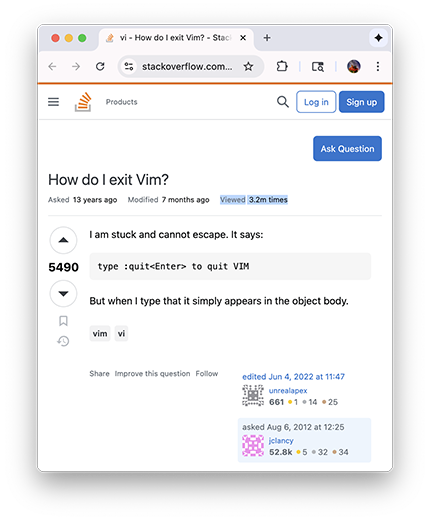
Almost always comes with Linux
emacs: Extensible and Feature-RichCommand:
emacs -nw FILEFull-featured editor that is also an environment.
Key commands:
Ctrl+X Ctrl+Sto save,Ctrl+X Ctrl+Cto quit.Highly customizable with its own programming language (Emacs Lisp).
Which one should you use?
Start with
nanoif you are brand new.Learn enough
vimbasics to be productive, since it is installed almost everywhere (including supercomputers).Explore
emacsif you like a fully integrated, extensible environment.
Remote Login and ssh
You may wonder why we spend so much time on the command line when laptops and desktops offer shiny graphical interfaces.
The reason is that a large fraction of the world’s computing power, especially in scientific computing, supercomputing, and cloud services, is still accessed primarily through the command line.
Many of these machines don’t even have a screen or keyboard connected to them! Instead, they are designed to be managed and used remotely. To interact with them, you must log in to the computer from another machine, usually over the network using command-line tools.
This is the standard way scientists, engineers, and developers work with shared computing resources such as high-performance computing (HPC) clusters, university research servers, and cloud-based systems.
| Command | Usage | Example |
|---|---|---|
ssh | ssh remote login client | ssh USER@REMOTE |
scp | secure file copy | scp -r SRC USER@REMOTE:DST |
ssh-keygen | authentication key utility | |
ssh-copy-id | use locally available keys to authorise logins on a remote machine | ssh-copy-id USER@REMOTE |
%%bash

# HANDSON: Logging in to UA HPC
#
# At the University of Arizona, research computing is supported by HPC
# clusters such as `Puma`, `Ocelote`, and `ElGato`.
# To use these systems, you log in remotely from your laptop or desktop
# using `ssh` (Secure Shell).
# You can find useful documentations
# [here](https://hpcdocs.hpc.arizona.edu/).
#
# Step 1: Open a Terminal
# * On macOS/Linux:
#   open the Terminal app.
# * On Windows:
#   If you have Windows Subsystem for Linux (WSL) enabled, open a WSL
#   terminal.
#   Or use Windows Terminal / PowerShell (which supports `ssh`
#   directly).
#
# Step 2: Use SSH to Connect
# The basic command is: `ssh <netid>@hpc.arizona.edu`.
# Replace <netid> with your UA NetID.
#
# Step 3: Authenticate
# The first time you connect, you may be asked to confirm the system's
# fingerprint.
# Type `yes`.
# Enter your UA NetID password when prompted.
# If you have NetID+ (two-factor authentication), follow the
# instructions (Duo push, passcode, etc.).
#
# Step 4: Explore!
# Once logged in, you will see a shell prompt on the HPC system.
# Try a few basic commands:
# ```
# hostname       # Show which machine you are on
# pwd            # Print working directory
# ls             # List files
# ```
HPC is a shared environment that has some steep learning curves. We will go through how to load software modules, compile/install your own packages, job submission, etc, in a later lab.
Version Control and Git
As projects grow, keeping track of changes becomes difficult:
Which version of the code worked last week?
What exactly changed between two drafts of a paper?
How do we collaborate without overwriting each other’s work?
Version control systems (VCS) solve these problems by recording changes to files over time. They allow you to:
Roll back to previous versions.
Compare changes between versions.
Work in parallel with others without losing work.
Git is the most widely used version control system today. It was created also by Linus Torvalds and has become the backbone of modern software and research collaboration.
We will use these slides to learn the basic of Git.
%%bash

# HANDSON:
#
# 1. Clone the class repository
#    https://github.com/ua-2025q3-astr501-513/ua-2025q3-astr501-513.github.io
#    to your laptop.
#
# 2. Accept 513 HW1, merge/sync upstream updates; clone the repository
#    to your laptop.
GitHub also supports many interesting features including GitHub Action. However, we will go through it in a later lab.